You may be tempted by the the low prices of various Chromebooks but were frightened away by fears of limited productivity.
Should I get a Chromebook or stick with a budget Windows notebook?
Much like high-powered gaming notebooks are best suited for a select group of people, Chromebooks will perfectly suit some users while proving limiting to many others. Since Chromebooks run Chrome OS, Google’s operating system, it relies heavily on Google’s suite of applications. Although users can log into Chrome OS as a guest, users should log into the system with Google credentials in order to have the best experience.
The Chromebook is optimized for Google’s apps, such as Gmail, Google Calendar and Google Drive. This deep integration can be a positive or negative feature, depending on how you use a PC. Getting set up on a Chromebook will be easy if you already use Google’s services for email, calendaring and documents. However, if you use other popular programs, such as Microsoft Outlook, AIM or Yahoo Mail, it might take some time getting adjusted to Google’s OS.
Unfortunately, Microsoft Office Suite isn’t available on Chromebooks, but that doesn’t mean that you won’t be able to work on your files. Google Drive is the Chrome OS equivalent of Microsoft’s suite of office applications. Users can create everything from text documents to spreadsheets and presentations. All your old Microsoft Word documents and PowerPoint presentations can be imported directly into Drive, allowing you to work on your files.
But there are often formatting issues when importing third-party documents into Drive, so the first few minutes of work may be fixing anything that’s broken. Fortunately, Google Drive allows you to save documents into Microsoft formats, so you’ll still be able to share these documents with non-Chromebook users.
Another issue that could influence your decision about getting a Chromebook is the prevalence of Internet connectivity. Chromebooks are designed to have a heavy reliance on the Internet, which means that many apps simply won’t work if you’re out of Wi-Fi range. There are a growing number of “offline” Chrome apps, which can work without Internet connectivity, including Gmail and Google Drive. However, offline mode isn’t enabled by default, so you’ll have to install a few plugins in order to access your email or documents sans the Web.
You’ll still be able to play games on the Chromebook, but you’re limited to the games available in the Chrome Web store. Classics such as Angry Birds and Cut The Rope are there, but you won’t have the same title selection as with a Windows or even OS X notebook. Chromebooks generally have limited graphics processing power, so even if a game such as “Bioshock Infinite” were available it would not play smoothly on these notebooks.
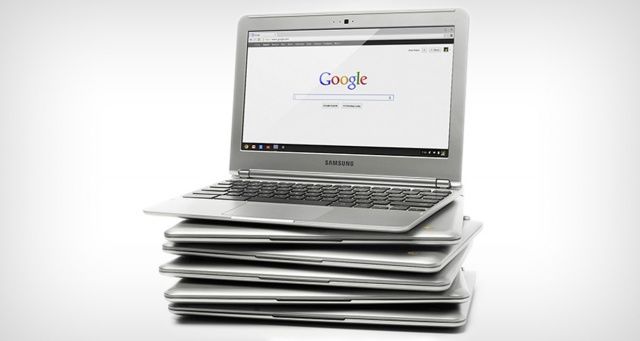
For your needs, either the $249 Samsung Chromebook Series 3 or the $279 Acer C710 are very good choices. The Samsung is sleeker and offers an hour more of battery life. The C710, alternately, has a 320 GB hard drive, compared to the 16GB hard drive in Samsung’s Chromebook, the latter of which relies heavily on cloud storage. Both notebooks have an 11.6-inch display and performed well during Web browsing, document editing and casual game playing.
If you want a bigger screen, and don’t mind a size and weight increase, the $329 HP Pavilion 14 Chromebook features a larger 14-inch display and great speakers. Like the Samsung Chromebook Series 3, however, the Pavilion 14 Chromebook has only 16GB of internal storage, meaning you’ll be storing many of your files in the cloud. And for a price in the $300s, you might very well find a good Windows 8 machine on sale.
Overall, those looking to spend less than $300 and are content with mostly living in the cloud will find a Chromebook a viable solution. You also won’t have to deal with nagging Windows updates. However, as you get closer to $400 and beyond a Windows 8 machine will give you a lot more versatility.